§1The most famous sentence in programming
Everyone who has worked with software has heard (or said) this:
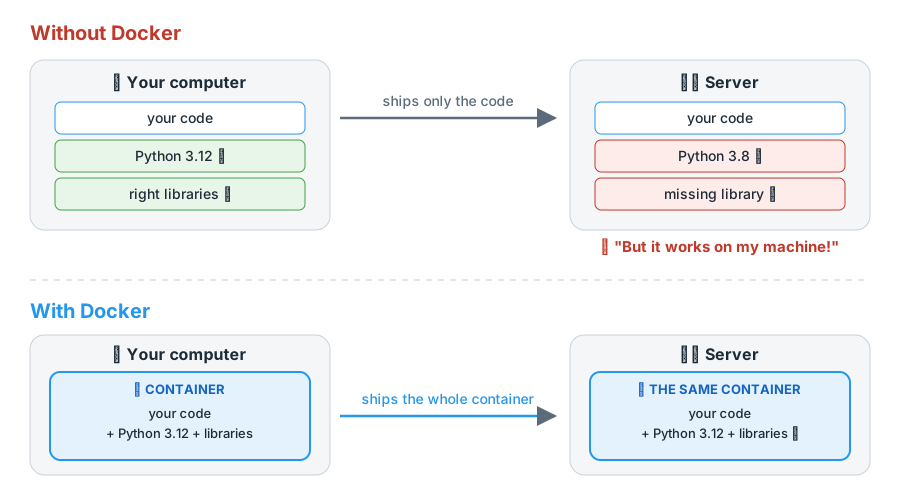
"But it works on my machine!"
The scene is always similar. You spend weeks building a system. It runs perfectly on your laptop. Then you send it to a colleague, or deploy it to the server, and… it breaks. A strange error, a missing library, the wrong version of something.
Why? Because your program is not just your code. It depends on a lot of invisible things around it:
- the language version (Python 3.8? 3.12?);
- the installed libraries (and their versions);
- the operating system (Windows, macOS, Ubuntu, Debian…);
- environment variables, configuration files, folders that "happened" to exist on your computer;
- helper programs (a database, Redis,
ffmpeg,libssl…).
Your code is like a plant: it only grows well in the right soil, with the right light and the right water. When you move the plant to another pot, it may die — not because the plant is wrong, but because the environment changed.
Docker solves exactly that: it lets you carry the plant together with the pot, the soil and the climate.
§2A story about ships (and why it is called a "container")
Before talking about computers, a quick trip back to the 1950s.
Back then, loading a ship was chaos. Every kind of cargo had its own shape: sacks of coffee, barrels of oil, wooden crates, pianos, cars. Dockworkers spent days fitting everything into the hold like a giant game of Tetris. Goods broke, were stolen, and every port had its own way of working.
Then came a ridiculously simple idea: the standardized shipping container. A metal box with a fixed size and standard fittings at the corners.
The trick is not the box itself — it is the standard:
- The ship does not need to know whether there is coffee or a piano inside. It only knows how to carry containers.
- Neither does the crane. Neither does the truck. Neither does the train.
- Whoever fills the container cares about the contents. Whoever transports it only cares about the box.
Shipping costs collapsed and world trade changed forever.
Docker does the same thing for software:
| Shipping world | Docker world |
|---|---|
| Cargo (coffee, pianos…) | Your application + everything it needs |
| Standardized container | Docker container |
| Ship, train, truck | Your laptop, the server, the cloud (AWS, Azure, GCP…) |
| "The ship does not need to know what is inside" | "The server does not need Python, Node or Java installed — only Docker" |
That is why Docker's logo is a whale carrying containers.
§3So what is Docker, after all?
Short definition:
Docker is a tool that packages an application together with everything it needs to run (system, libraries, configuration) into an isolated, portable unit called a container.
In other words, instead of handing over "here is my code, good luck installing the rest", you hand over "here is a box that already works; just switch it on".
Three promises sum up Docker:
- It works the same everywhere. If it ran on your laptop, it runs on your colleague's, on the server and in the cloud.
- Isolated. Each container has its own "bubble". You can have one app using Python 3.8 and another using Python 3.12 side by side, neither aware of the other.
- Disposable and reproducible. Broke it? Delete it and create it again in seconds, identical to the original.
§4"Isn't that just a virtual machine?"
Great question — and a very common confusion. The answer is: similar in purpose, very different in how it works.
The houses-and-apartments analogy
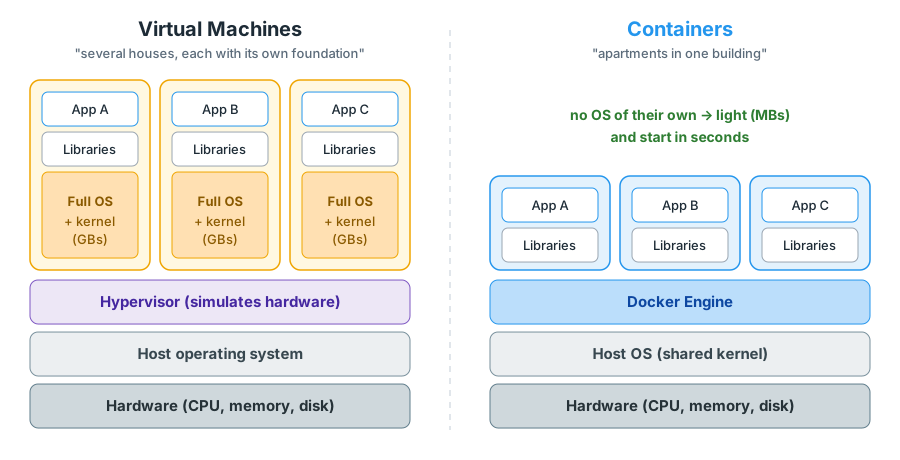
- A virtual machine (VM) is like building several houses on a plot of land. Each house has its own foundation, plumbing, wiring and water tank. Fully independent — but expensive and slow to build.
- A container is like an apartment building. Each apartment has its own locked door, its privacy, its furniture. But they all share the building's foundation, structure and water supply. Much cheaper and faster to move into.
Technically, the "shared foundation" is the kernel of the operating system — the core that talks to the hardware (CPU, memory, disk).
- A VM simulates an entire computer and runs a complete operating system inside it (with its own kernel). It weighs gigabytes and takes minutes to boot.
- A container reuses the host machine's kernel and isolates only what matters: files, processes, network. It weighs megabytes and starts in seconds (sometimes milliseconds).
| Virtual machine | Container | |
|---|---|---|
| What it carries | Full OS + app | Only the app and its dependencies |
| Typical size | Gigabytes | Megabytes |
| Start-up time | Minutes | Seconds |
| How many fit on a server | Dozens | Hundreds |
| Isolation | Very strong (virtual hardware) | Strong, but shares the kernel |
Fun fact: on Windows and macOS, Docker Desktop runs a very light Linux VM under the hood (on Windows, usually through WSL 2). That is because the vast majority of containers are built for the Linux kernel. You do not need to worry about it day to day — but it is good to know it is there.
Containers do not replace VMs for everything. If you need to run Windows inside Linux, or want maximum isolation between customers who do not trust each other, a VM is still the right tool. In practice, it is very common to run containers inside VMs in the cloud.
§5The 4 concepts you need to master
If you understand these four words, you understand 80% of Docker:
- Dockerfile
- Image
- Container
- Registry (e.g. Docker Hub)
The kitchen analogy
| Concept | Analogy | What it really is |
|---|---|---|
| Dockerfile | The cake recipe | A text file with the step-by-step instructions to build the environment |
| Image | A ready-made frozen cake, packaged | The "packaged" result of the recipe. Read-only, it does not change |
| Container | A slice served on a plate | A running instance of the image. You can have several at the same time |
| Registry | The supermarket where frozen cakes are stocked | An online "repository" of images (Docker Hub, GitHub Container Registry…) |
If you program, another analogy helps a lot:
An image is to a container what a class is to an object. The image is the mold; the container is the living thing created from it. From the same image you can create as many containers as you like.
And the full flow looks like this:
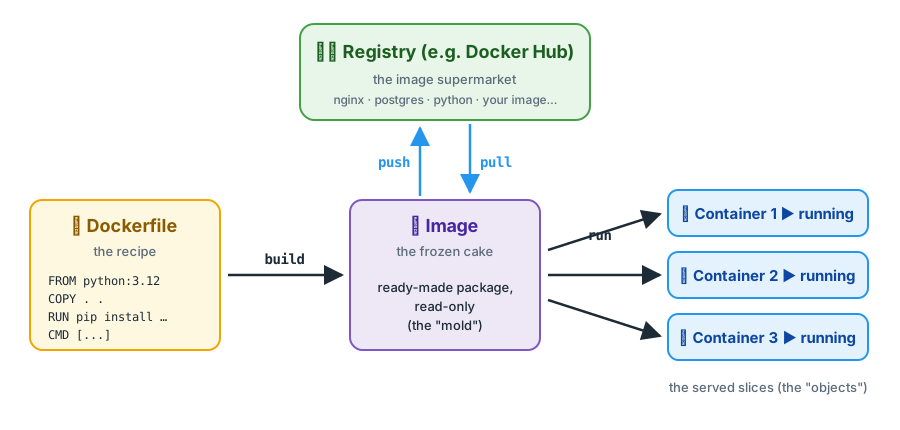
docker build→ turns the recipe (Dockerfile) into an image.docker run→ starts a container from an image.docker push→ sends your image to the registry.docker pull→ downloads an image from the registry.
Keep this picture in mind. Everything else is detail on top of it.
§6Hands-on: your first container
Installing
- Windows / macOS: install Docker Desktop. On Windows it will ask you to enable WSL 2 — accept.
- Linux: follow the official guide for your distribution at docs.docker.com/engine/install.
To check that it worked, open a terminal and run:
docker --version
"Hello, world"
docker run hello-world
It looks like little, but a lot happened here:
- Docker looked for the
hello-worldimage on your computer. - It did not find it, so it downloaded it from Docker Hub (an automatic
pull). - It created a container from it.
- The container ran, printed the welcome message and exited.
That last point matters: a container lives as long as its main process is running. hello-world just prints some text and finishes — so the container finishes with it.
A web server in one command
Now something more fun. Let's start a real web server (Nginx) without installing anything:
docker run -d -p 8080:80 --name my-site nginx
Open your browser at http://localhost:8080. You will see the "Welcome to nginx!" page.
Breaking the command down:
| Piece | Meaning |
|---|---|
docker run |
Create and start a container |
-d |
detached: run in the background and give me my terminal back |
-p 8080:80 |
Connect port 8080 on my computer to port 80 in the container |
--name my-site |
Give the container a friendly name |
nginx |
The image to use |
Now play with it:
docker ps                  # list running containers
docker logs my-site        # show what the container printed
docker stop my-site        # stop it
docker start my-site       # start it again
docker rm -f my-site       # stop it (if needed) and delete it
Understanding -p 8080:80 (ports)
Remember the building analogy? Each container is an apartment with its own internal numbering. Nginx, inside the apartment, answers on port 80. But whoever is outside (your browser) cannot see into the apartment.
-p 8080:80 is like putting a buzzer at the front desk: "whoever rings 8080 down here gets forwarded to 80 in the my-site apartment".
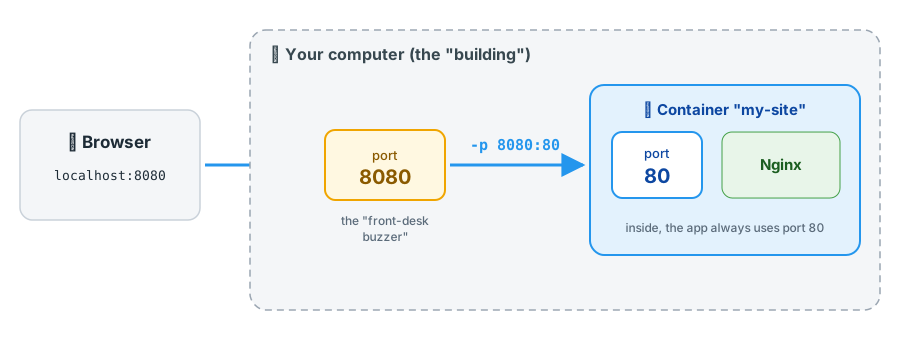
This lets you, for example, run three Nginx servers at once, each answering on a different port of your computer:
docker run -d -p 8081:80 nginx
docker run -d -p 8082:80 nginx
docker run -d -p 8083:80 nginx
All three use port 80 on the inside — no conflict, because each one is in its own apartment.
Getting inside the container
Want to peek inside? You can open a terminal inside a running container:
docker run -d --name spy nginx
docker exec -it spy bash
Now you are "inside". Run ls /, cat /etc/os-release… You will notice there is a mini Linux in there (Debian, in Nginx's case), even if you are on Windows. Type exit to leave.
Using programs without installing them
This is one of Docker's most underrated uses: trying things without cluttering your computer.
Want a Python 3.12 to test something quickly, but don't want to install it?
docker run -it --rm python:3.12 python
--rm deletes the container automatically when you exit. Zero mess.
Need a PostgreSQL database for a university project?
docker run -d --name db -e POSTGRES_PASSWORD=password123 -p 5432:5432 postgres:16
Done, a full Postgres is running. When you no longer need it: docker rm -f db. No uninstallers, no forgotten services starting at boot, no version conflicts.
About tags (:3.12, :16): what comes after the colon is the image's version. python:3.12 and python:3.8 are different images. If you don't specify one, Docker uses :latest — handy for playing around, but dangerous in real projects, because "latest" changes over time. In serious projects, always pin the version.
§7Building your own image: the Dockerfile
So far we have only used ready-made images. The real power shows up when you package your own application.
Let's create a minimal API in Python. Create a folder my-app with three files:
app.py
from flask import Flask

app = Flask(__name__)

@app.route("/")
def hello():
    return "Hello! I am running inside a container"
requirements.txt
flask==3.0.3
Dockerfile (no extension, capital "D")
# 1. Start from an image that already has Python installed
FROM python:3.12-slim

# 2. Set the working folder inside the container
WORKDIR /app

# 3. Copy the dependency list and install it
COPY requirements.txt .
RUN pip install --no-cache-dir -r requirements.txt

# 4. Copy the rest of the code
COPY . .

# 5. Document the port the app uses
EXPOSE 5000

# 6. The command that runs when the container starts
CMD ["flask", "--app", "app", "run", "--host=0.0.0.0", "--port=5000"]
Read in plain English, the Dockerfile says:
"Take a slim Linux that already comes with Python 3.12. Create the /app folder. Copy the list of libraries and install them. Copy my code. When someone starts the container, run Flask."
Now build the image and run it:
docker build -t my-app .
docker run -d -p 5000:5000 --name api my-app
Go to http://localhost:5000. Your application is running in a container — and you don't even need Python installed on your computer for it to work. Anyone with Docker can run exactly the same environment.
Why --host=0.0.0.0? By default, Flask only accepts connections coming "from the machine itself" (127.0.0.1). But "the machine itself", for Flask, is the container! Your browser is outside. 0.0.0.0 means "accept connections from anywhere". This is probably the most common beginner mistake — the app starts, but the browser cannot connect.
The most used instructions
| Instruction | What it is for |
|---|---|
FROM |
The base image you start from (always the first line) |
WORKDIR |
The "current" folder inside the container |
COPY |
Copies files from your computer into the image |
RUN |
Runs a command during the build (e.g. installing packages) |
ENV |
Sets environment variables |
EXPOSE |
Documents which port the app uses (it does not publish the port by itself!) |
CMD |
Default command run when the container starts |
The classic confusion: RUN vs CMD.
- RUN happens once, while building the image (preparing the recipe).
- CMD happens every time a container starts (serving the dish).
The .dockerignore file
Like .gitignore, it lists what not to copy into the image. Create it in the same folder:
__pycache__/
.venv/
.git/
*.log
.env
This makes the image smaller, the build faster, and avoids leaking sensitive things (like an .env with passwords).
§8Layers: the secret behind the speed
Here is an intuition that separates people who use Docker from people who understand Docker.
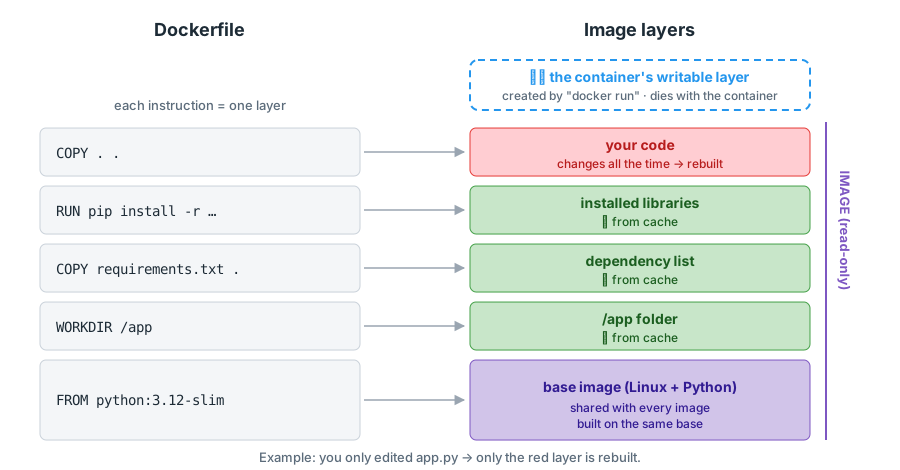
An image is not a single block. It is a stack of layers, like a lasagna — and each Dockerfile instruction creates a layer.
Two very practical consequences:
1. Cache. When you run docker build again, Docker reuses every layer that has not changed. It only rebuilds from the first layer that changed — and everything after it.
That is why our Dockerfile copies requirements.txt before the rest of the code:
COPY requirements.txt .        # rarely changes
RUN pip install -r requirements.txt   # slow, but cached
COPY . .                       # changes all the time
If you edit app.py, only the last layer is rebuilt. pip install (which can take minutes) comes from the cache. If you put COPY . . before pip install, any change to the code would force reinstalling every library.
Golden rule: put what rarely changes at the top of the Dockerfile, and what changes often at the bottom.
2. Sharing. If you have ten different images that all start with FROM python:3.12-slim, that base layer is stored only once on disk. The ten images point to it. Huge savings in space and download time.
And the container? When you start a container, Docker puts a thin writable layer on top of the image (which is read-only). Everything the container changes goes into that layer. That is why you can have 50 containers from the same image using almost no extra disk.
…which leads us to an important problem.
§9Containers are disposable — what about your data?
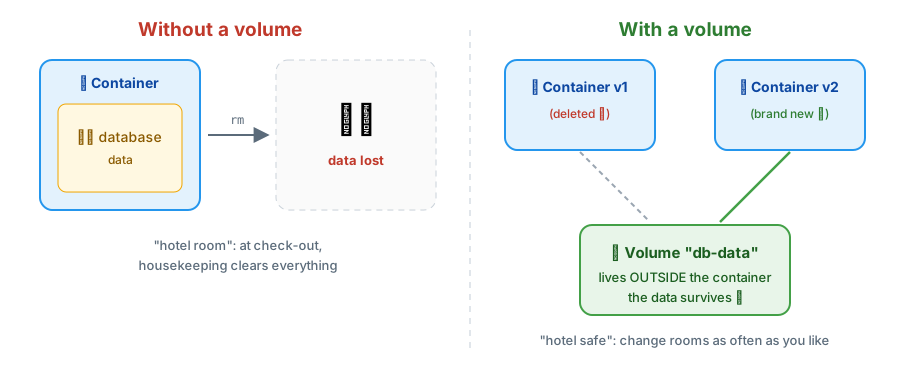
That writable layer dies with the container. If you delete the Postgres container, all the data in the database goes with it.
This is not a bug, it is a philosophy: containers should be treated like cattle, not pets. You don't lovingly tend to one specific container; if it gets sick, you replace it with an identical one. But the data has to survive.
The solution is volumes.
The hotel room analogy
A container is like a hotel room. When you check out, housekeeping clears everything. If you left something in the room, it's gone.
A volume is like the hotel's safe / luggage room: it lives outside the room. You can change rooms as many times as you want — your things stay put.
In practice:
# create a Postgres container storing its data in the "db-data" volume
docker run -d --name db \
  -e POSTGRES_PASSWORD=password123 \
  -v db-data:/var/lib/postgresql/data \
  postgres:16
-v db-data:/var/lib/postgresql/data means: "the folder where Postgres stores its data, inside the container, actually lives in the db-data volume".
Now you can docker rm -f db, create another container with the same -v, and the data will still be there.
There are two main kinds:
| Kind | Example | When to use |
|---|---|---|
| Named volume | -v db-data:/path |
Data for databases and services. Docker manages where it lives. |
| Bind mount | -v ./my-code:/app |
Connect a folder on your computer to the container. Great for development: you edit code in your editor and the container sees the change immediately. |
§10Several containers together: Docker Compose
Real applications are rarely a single container. Usually you have something like:
- an API (your code);
- a database (Postgres);
- a cache (Redis);
- maybe a frontend.
Starting all of that with four giant docker run commands, remembering ports, volumes, passwords and networks, is tedious and error-prone.
Docker Compose fixes that: you describe the whole system in a compose.yaml file and start everything with one command.
If a Dockerfile is the recipe for one dish, Compose is the menu for the whole dinner: starter, main course, dessert, and the order to serve them.
Let's extend our API to count visits using Redis.
app.py
from flask import Flask
import redis

app = Flask(__name__)
cache = redis.Redis(host="redis", port=6379)

@app.route("/")
def hello():
    visits = cache.incr("visits")
    return f"Hello! This page has been viewed {visits} times."
requirements.txt
flask==3.0.3
redis==5.0.8
compose.yaml
services:
  api:
    build: .
    ports:
      - "5000:5000"
    depends_on:
      - redis

  redis:
    image: redis:7-alpine
    volumes:
      - redis-data:/data

volumes:
  redis-data:
And now, the magic:
docker compose up -d
Go to http://localhost:5000 and reload the page a few times. The counter goes up.
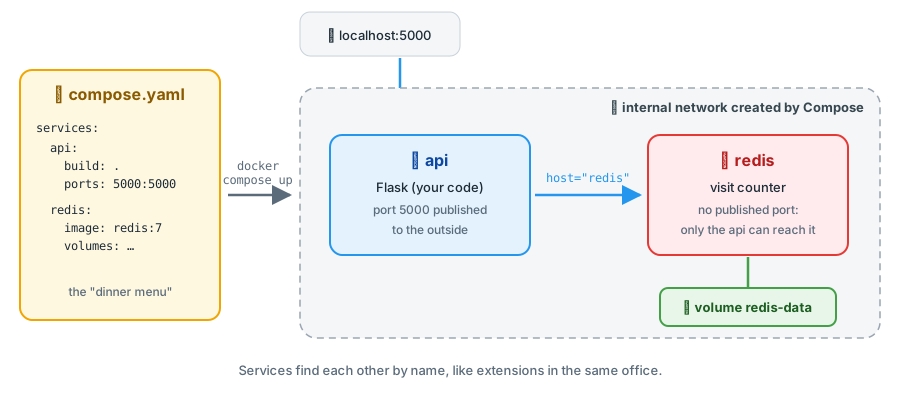
Notice a lovely detail: in the Python code, we connect to Redis using host="redis". "redis" is the service name in compose.yaml. Compose automatically creates an internal network where each service finds the others by name, like extensions on an office phone system. Notice too that Redis has no ports: — it does not need to be reachable from outside, only by the API. Safer.
Everyday commands:
docker compose up -d        # start everything in the background
docker compose ps           # service status
docker compose logs -f api  # follow the API logs
docker compose down         # stop and remove the containers (volumes stay)
docker compose up -d --build  # rebuild the images and start again
For a new person on the team, onboarding becomes: "clone the repository and run docker compose up". No 30-step installation document.
§11Cheat sheet: essential commands
Images
docker images                 # list local images
docker pull nginx:1.27        # download an image
docker build -t name:tag .    # build an image from the Dockerfile in the current folder
docker rmi name:tag           # delete an image
Containers
docker run [options] image    # create and start a container
docker ps                     # running containers
docker ps -a                  # all of them, including stopped ones
docker stop name              # stop
docker start name             # start a stopped container
docker rm name                # delete (must be stopped; use -f to force)
docker logs -f name           # follow the logs
docker exec -it name sh       # open a terminal inside the container
Most used docker run options
| Option | Meaning |
|---|---|
-d |
Run in the background |
-it |
Interactive mode with a terminal |
--rm |
Delete the container when it exits |
-p HOST:CONTAINER |
Publish a port |
-v SOURCE:TARGET |
Mount a volume or folder |
-e KEY=value |
Set an environment variable |
--name name |
Give the container a name |
Cleaning up
docker system df              # how much space Docker is using
docker system prune           # remove stopped containers, unused networks and dangling images
docker system prune -a --volumes is the "nuclear option": it also deletes unused images and volumes — meaning it can delete database data. Use it knowing what you are doing.
§12Common beginner mistakes
"I ran the container and it died immediately."
Remember: a container lives as long as its main process lives. Run docker logs container-name to see the error. Often it is a wrong command in CMD or a missing environment variable.
"The app is running, but the browser can't connect."
Two top causes: (1) you forgot -p to publish the port; (2) the app listens on 127.0.0.1 instead of 0.0.0.0 inside the container.
"I deleted the container and lost my data." You needed a volume. Anything that must survive goes into a volume.
"I changed the code and nothing changed."
An image is a snapshot taken at build time. Changed the code? You need docker build again (or docker compose up --build). In development, a bind mount avoids this.
"Inside the container, localhost can't find my database."
Inside a container, localhost is the container itself, not your computer. Use the service name (with Compose) or host.docker.internal to reach the host machine (on Docker Desktop).
"My disk is full."
Old images and containers pile up. docker system df shows the size; docker system prune cleans up.
§13Good practices (the "next level")
- Pin versions.
FROM python:3.12-sliminstead ofFROM python. Reproducibility is the reason to use Docker, after all. - Prefer slim images.
-slimand-alpinevariants are much smaller. Less installed software = lighter image and a smaller attack surface. - Order the Dockerfile with the cache in mind. What rarely changes at the top, what changes often at the bottom.
- Use
.dockerignore. - Never put passwords inside the image. No
ENV PASSWORD=...in the Dockerfile and no copying.envinto the image. Pass secrets at run time (-e,env_filein Compose, or secret-management tools). - One main process per container. The API in one container, the database in another. Don't cram everything into one box — combine them with Compose.
- Don't run as root when you can avoid it. Many images let you set a regular user with the
USERinstruction. It is an extra layer of security.
§14What Docker is not
To finish the mental map, let's clear up a few myths:
- It is not a programming language. It is a packaging and execution tool.
- It is not a virtual machine (as we saw, it shares the kernel).
- It is not just for "DevOps". Data scientists, students and developers in any field benefit from it.
- It is not required for everything. A 20-line script only you use probably doesn't need a container. Docker shines when dependencies, several people or several environments are involved.
- It is not the same as Kubernetes. Docker runs containers on one machine. Kubernetes orchestrates thousands of containers across many machines (decides where each one runs, restarts the ones that crash, scales with demand). If Docker is the container, Kubernetes is the management of the whole port.
§15Everything in one paragraph
Your software depends on an environment, and environments differ on every machine. Docker solves this by packaging the app together with its environment. You write a recipe (Dockerfile), build an immutable package (image), and start as many copies of that package as you want (containers), which are light because they share the host system's kernel. Images are made of reusable layers, travel through registries such as Docker Hub, keep important data in volumes, expose services through ports and, when the system has several pieces, are run together by Docker Compose.
If you understood this paragraph, you have left zero behind.
§16Next steps
- Practice. Take a project of yours (university, work, a side project) and write a Dockerfile for it.
- Explore Docker Hub. Look at the official images for the databases, languages and tools you already use.
- Read the official documentation, which is excellent: docs.docker.com/get-started.
- Learn multi-stage builds — a technique for producing much smaller images by separating the build environment from the runtime environment.
- When you feel comfortable, look into CI/CD (running tests in containers on every commit) and, later, Kubernetes.
§17Quick glossary
| Term | In one sentence |
|---|---|
| Container | An isolated, running instance of an image. |
| Image | An immutable package with app + dependencies, used to create containers. |
| Dockerfile | A text file with the instructions to build an image. |
| Layer | Each "floor" of an image; reused across builds and across images. |
| Registry | A remote repository of images (e.g. Docker Hub). |
| Tag | An image's "version" (what comes after the :). |
| Volume | Storage that lives outside the container and survives it. |
| Bind mount | A folder on your computer "mirrored" inside the container. |
| Docker Compose | A tool to define and start several containers together from a YAML file. |
| Kernel | The core of the operating system; containers share the host's. |
| Docker Desktop | The Windows/macOS app that installs and runs Docker (with a light Linux VM underneath). |
References: official Docker documentation (getting started, Dockerfile and Docker Compose reference); Docker Hub. Diagrams made by me for this article.